Fit more blanks
on every sheet You Buy
For rectangular blanks and parts cut from sheet materials. Enter the sizes and quantities, pick a sheet format and get a layout with a ready cutting plan.It’s free. Actually free.
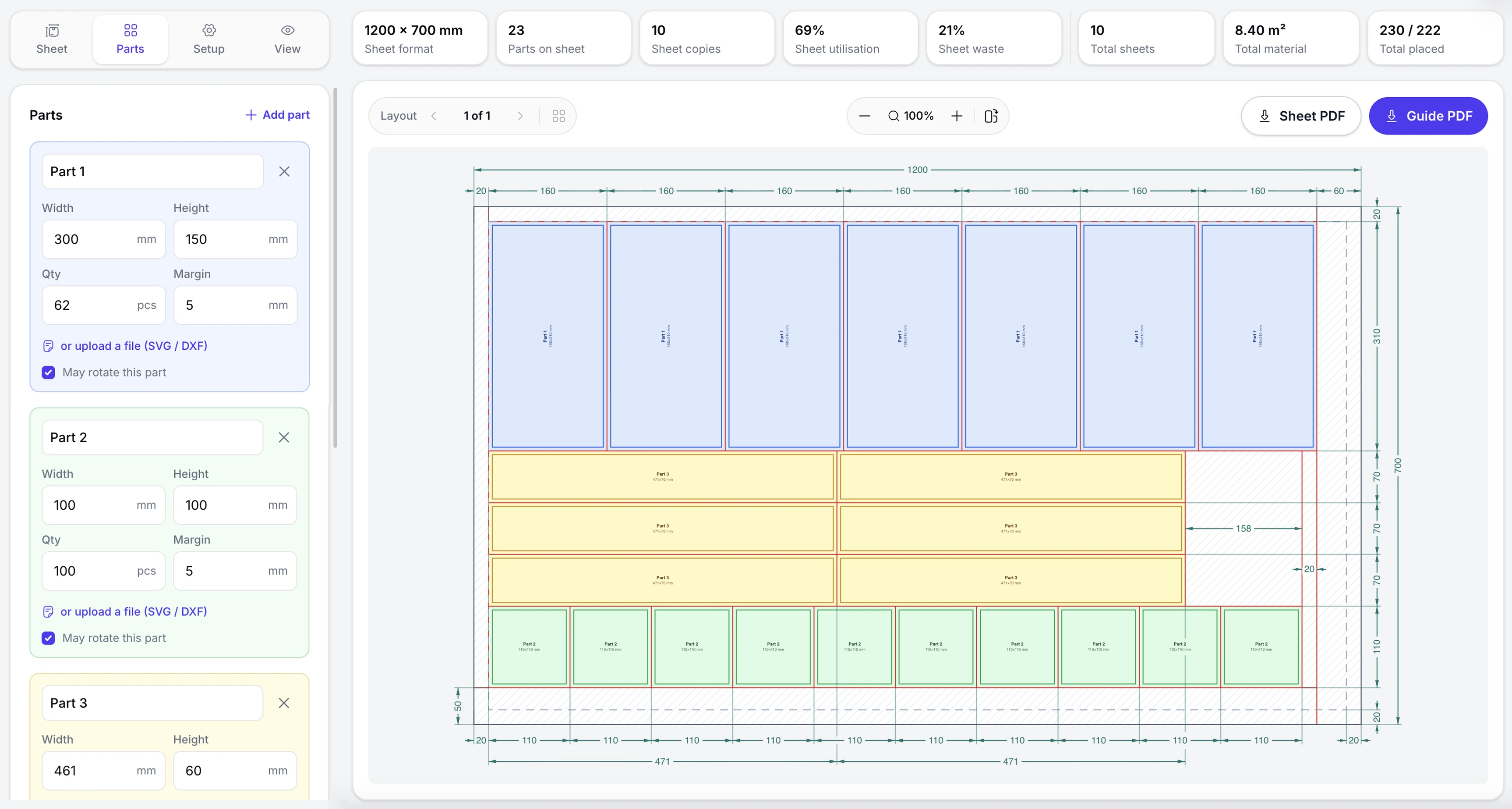
- Free, no account.
- Every feature is free — no sign-up, no e-mail, no card and no trial period.
- Runs in your browser.
- The layout is worked out right on your own device. Your PDF, DXF and SVG files stay with you and are never sent to a server.
- Guillotine-cuttable.
- Every layout becomes a plan of cuts from edge to edge — it can be used as the cutting map on the guillotine.
- Several formats at once.
- Add several sheet formats and Imposer picks the optimal one. Or switch on identical sheets and repeat one layout across the whole run.
- Material offcuts.
- The free rectangular areas of the sheet are hatched — you can keep them for the next order.
- Stats & export.
- Parts placed, sheet fill and waste area — per sheet and for the whole order, with the sheet or the full PDF guide to download.
Everything in the tool
What the tool can do
Set the sheet format and the part parameters, arrange the layout, check the final result on the drawing and download the finished sheets or the full PDF guide.
Sheets and formats
Set the material and the sheet formats available.
- Ready presets — A and B series, SRA and RA, press sheets, boards, North American sizes
- Up to five formats at once, each with its own number of sheets
- Any size of your own, from 100 to 3000 mm
- Sheet margins, set on each side on its own
- Identical-sheet mode: one layout across the whole run
Parts and blanks
Give every part its own cutting parameters.
- Up to ten parts, each with its size and quantity
- A margin of its own on every part
- Rotation locked part by part, for grain, flute or print direction
- Upload an SVG or DXF and the part’s outline is drawn on the sheet
- Sizes from 10 to 1000 mm, in millimetres or inches
The drawing
Get the layout and a ready cutting plan.
- The guillotine cut plan in red, edge to edge
- Dimension chains on every side
- Material offcuts are hatched and shown as separate rectangles
- Labels you choose: part names, the bare size or the size with its margin
- Zoom, fit to view and a 90° turn; page through the layouts or see them all at once
Results and PDF
Check the material used and download the result.
- Parts, sheets, material used and offcuts — per sheet and for the order
- Layout drawing — the sheet to scale, with dimensions and cut lines
- Full PDF guide — order summary, parts table and every layout to scale
- Ten languages, in the exported PDF as well as on screen
How it works
From parts to a finished layout in four steps
Enter the part sizes and the sheet format — the tool shows how they sit on the sheet straight away.
Set the sheet
Pick one preset format or several, or type your own size — in millimetres or inches.
Add the parts
Enter the sizes and quantities, set the allowance and lock rotation where it matters. Load an SVG or DXF if you need to.
Automatic layout
The tool works out the optimal layout, shows where the parts sit and marks the material offcuts.
Download the result
Download the current sheet or the full PDF guide with the job summary and every layout to scale.
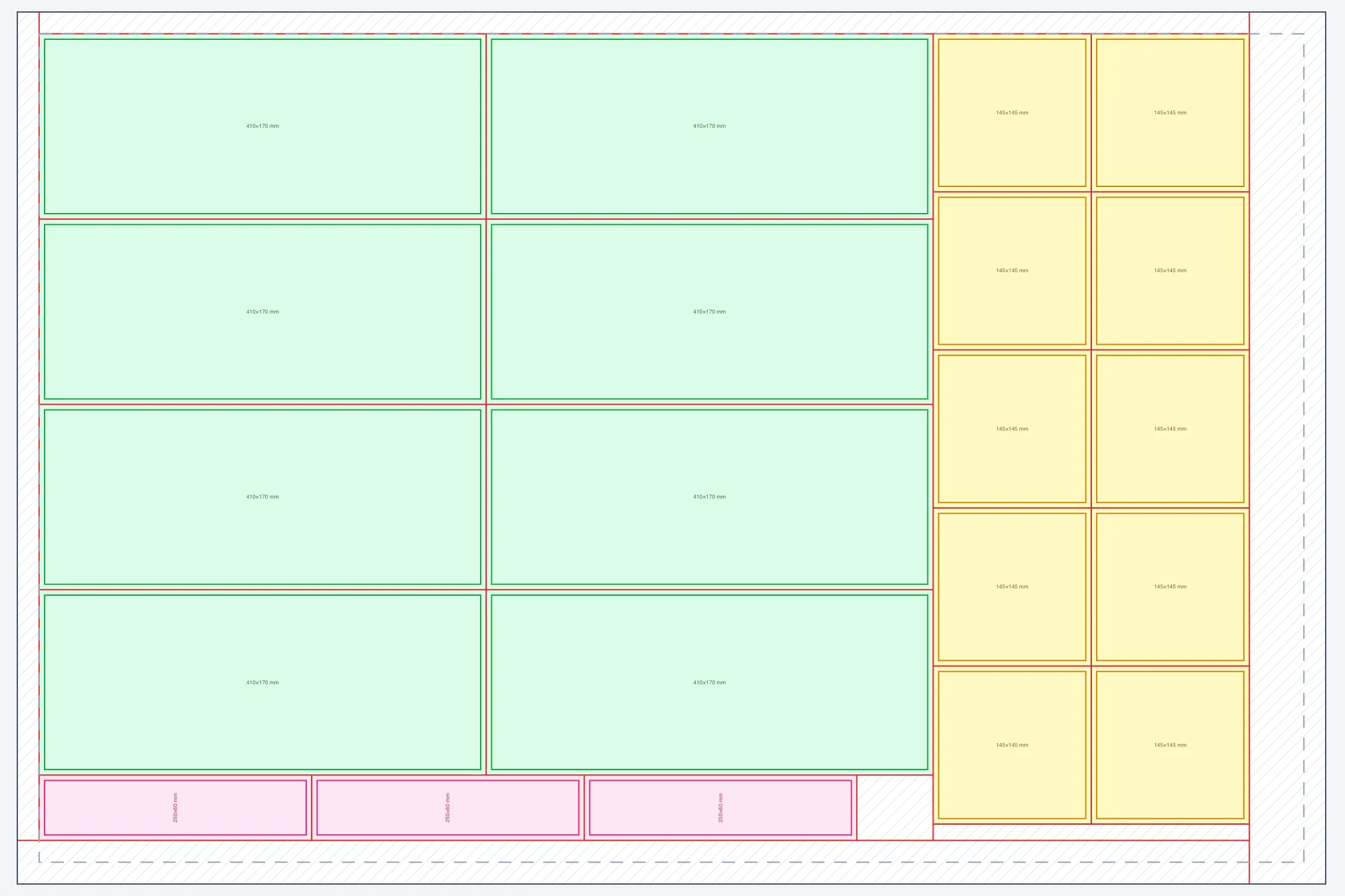
The sheet, to scale
Parts in their own colours, material offcuts hatched, the unused edge dashed.
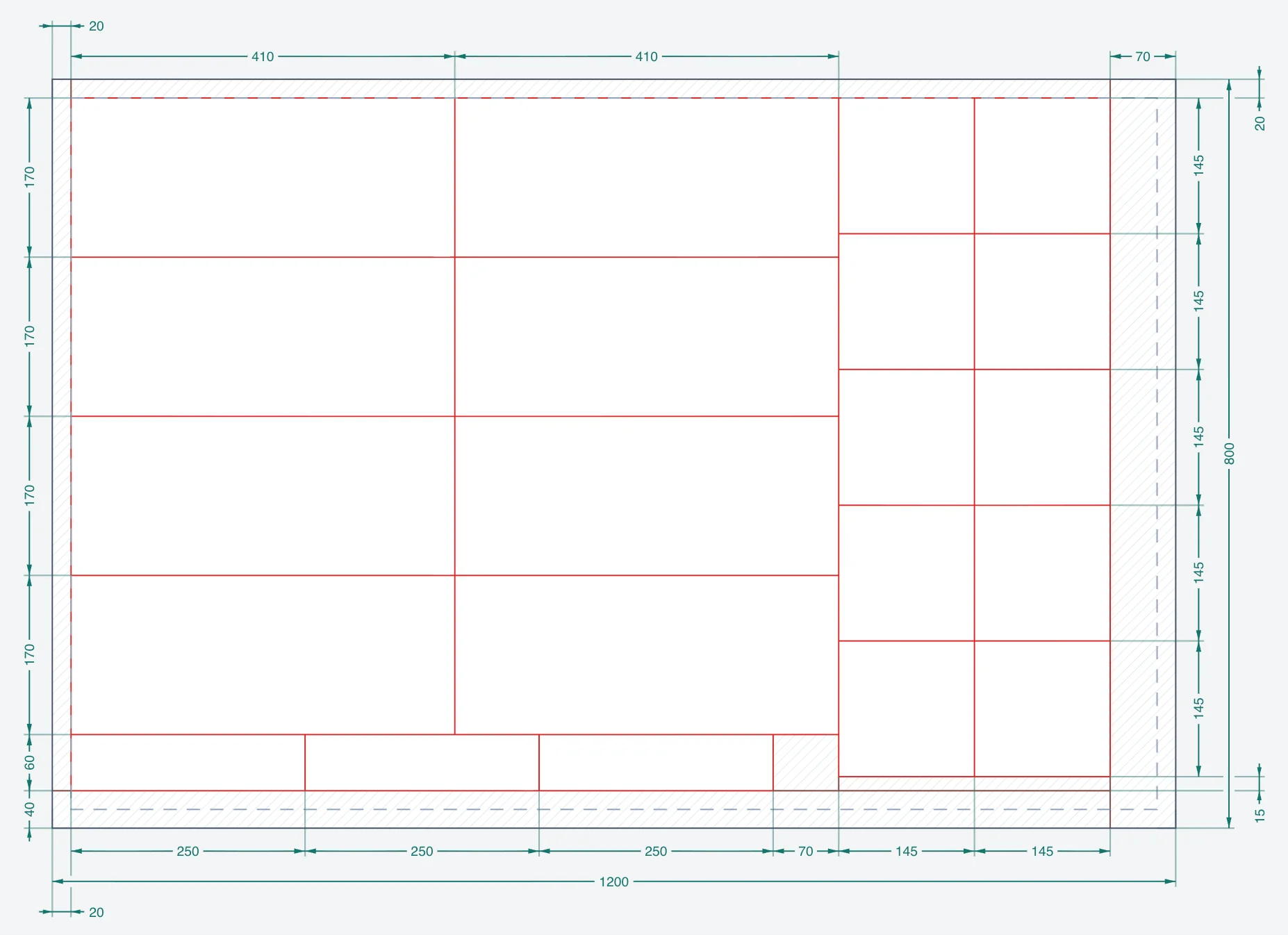
The cut plan
The guillotine sequence in red, with the distance between every pair of cuts written on it.
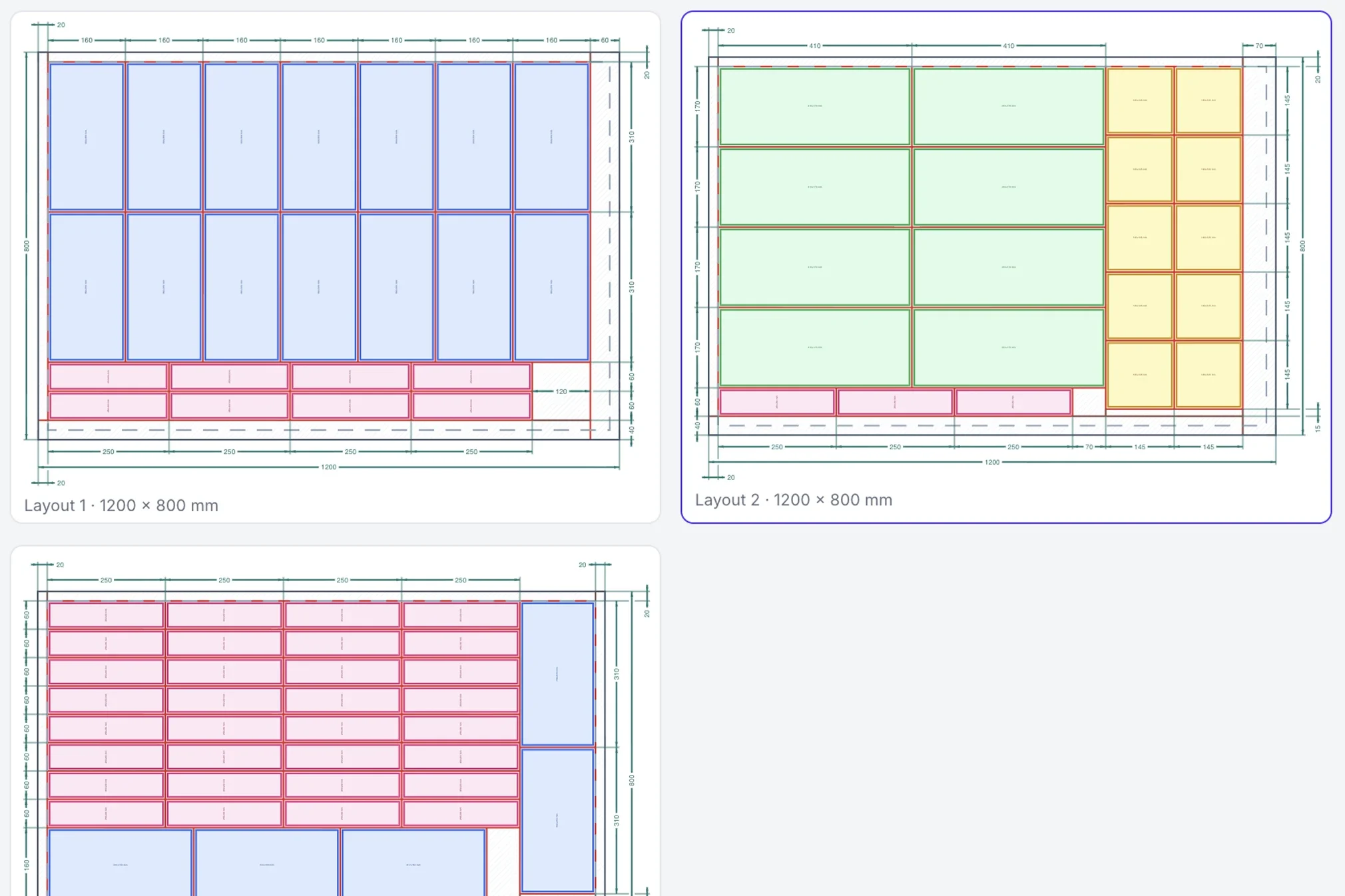
All sheets
Every layout side by side, each with the number of sheets it is cut on.
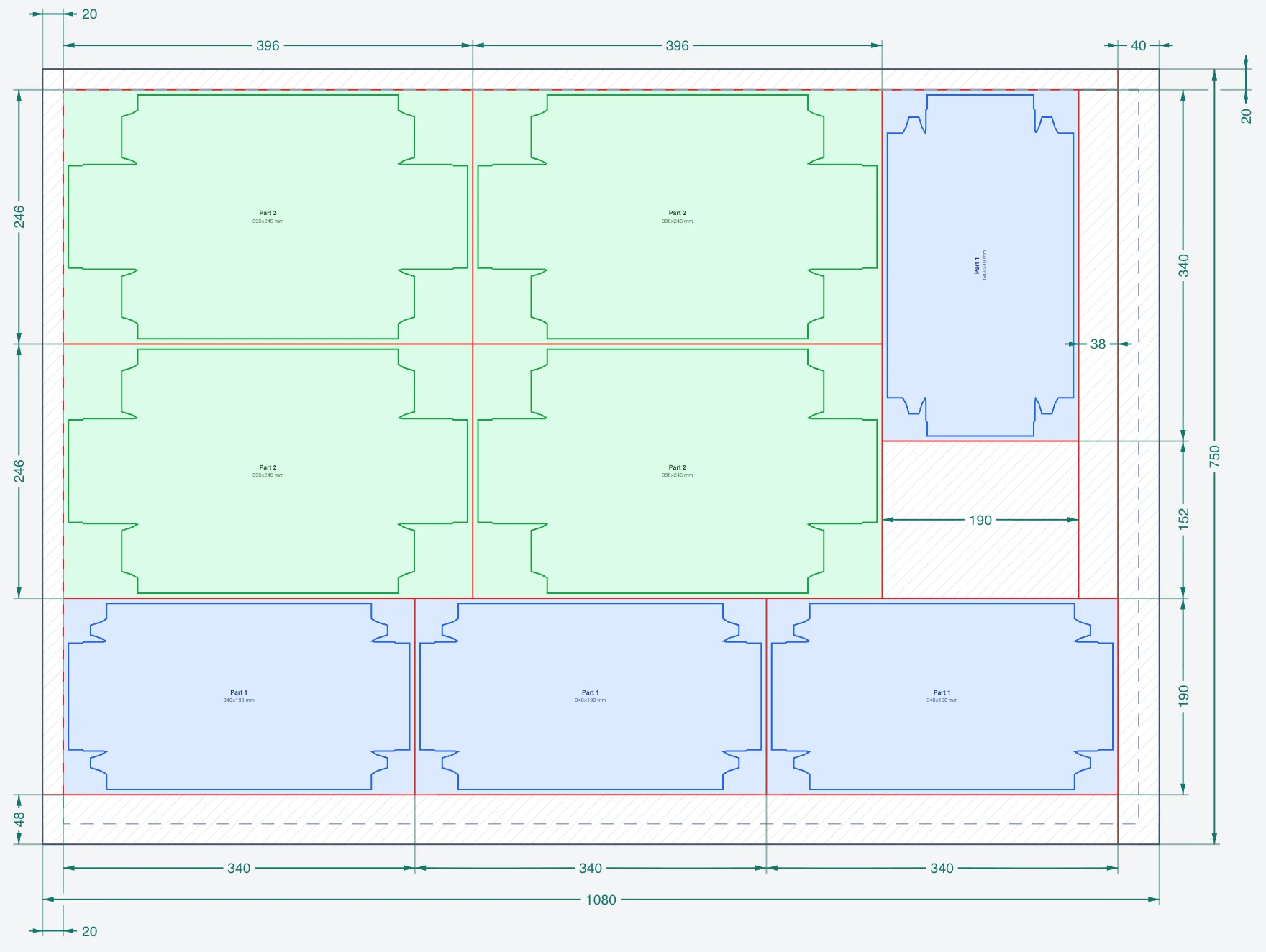
Drawings from your files
Parts loaded from SVG or DXF keep their own outline; the layout and the cuts still run by the bounding box.
Sample PDF
A finished PDF guide with the cutting plan
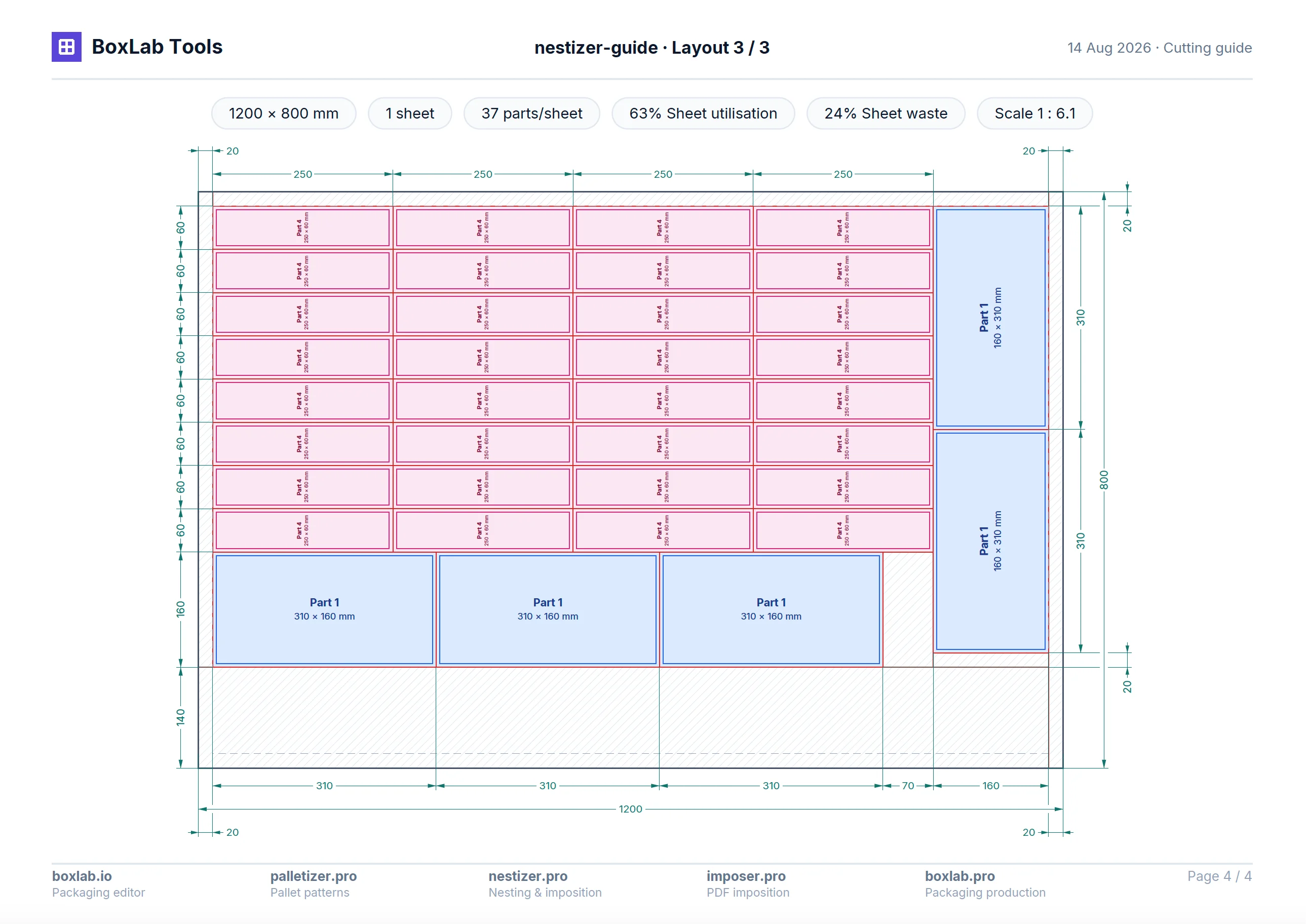
The PDF below is built from a real job. It holds the order summary, the parts, every layout to scale and the sheet drawings with their cut lines.
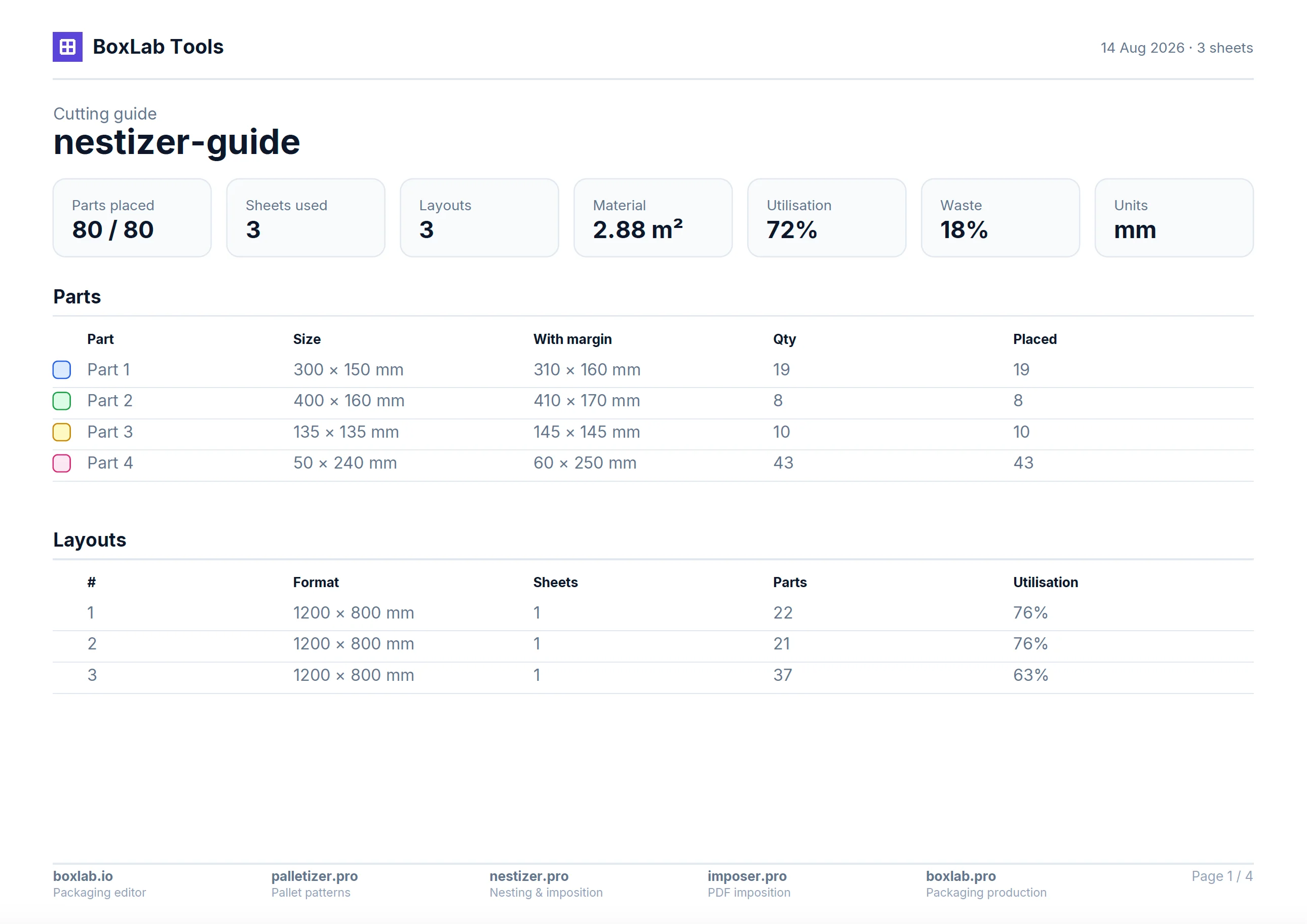
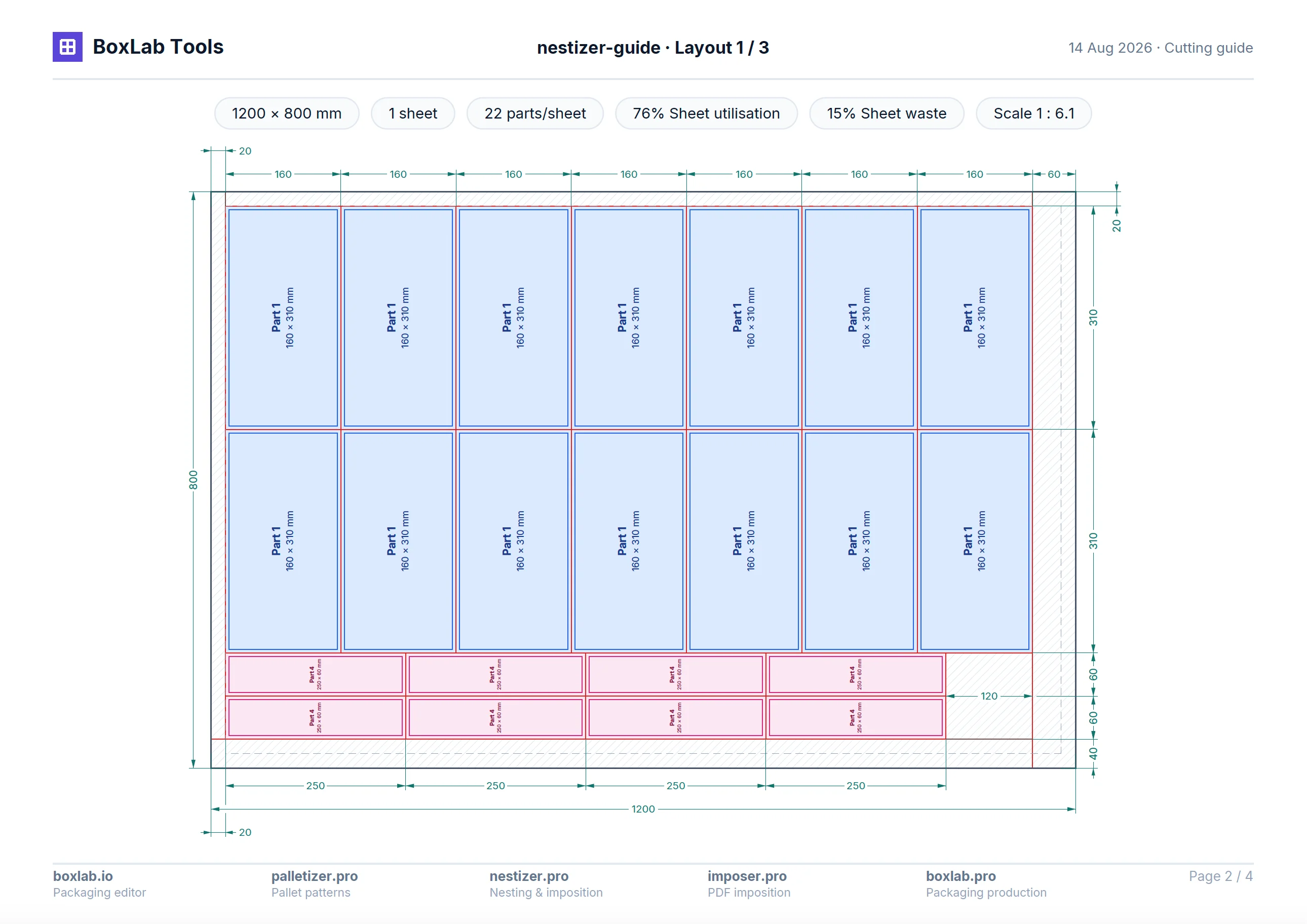
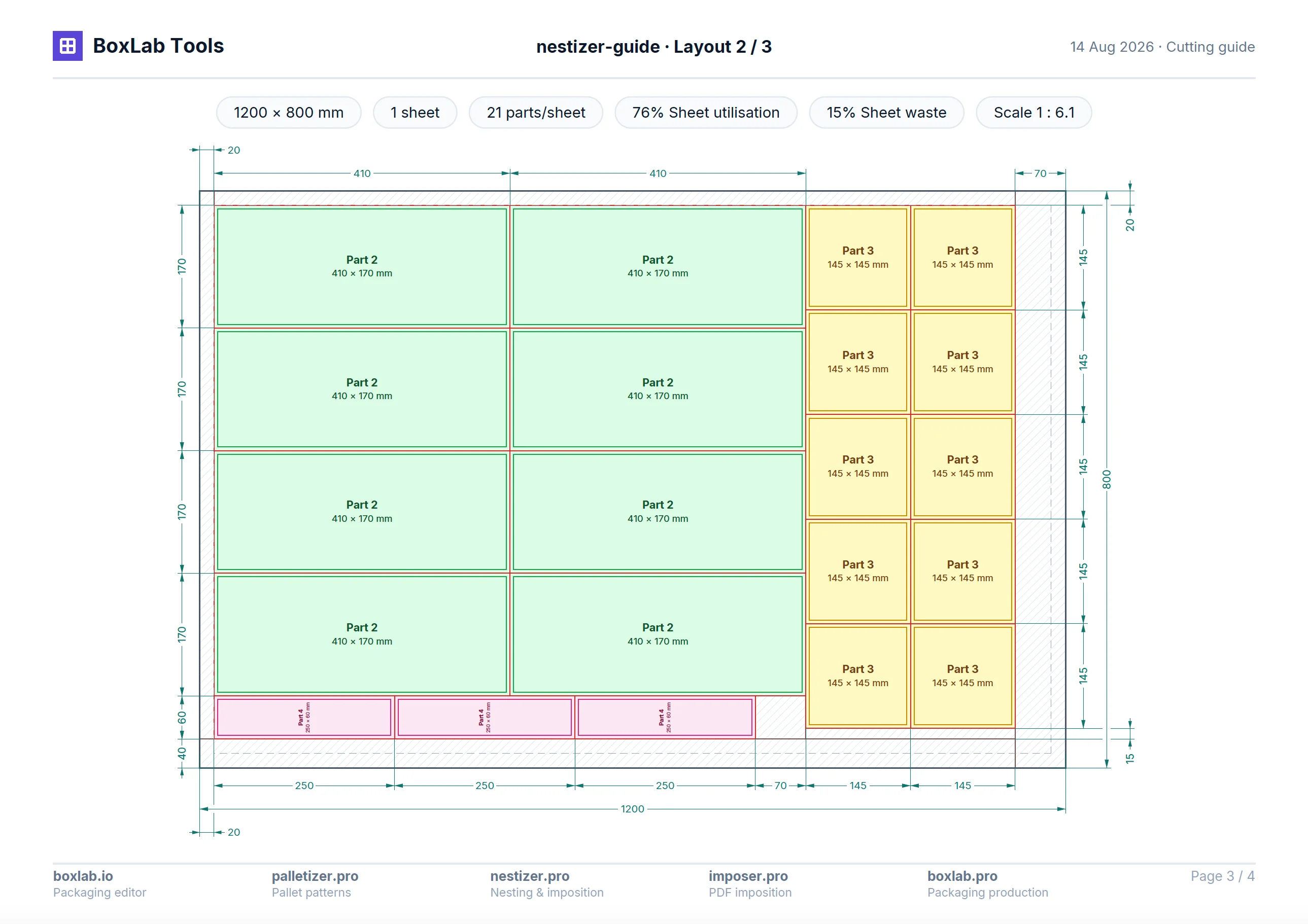
- A summary page: sheets, material, weight and utilisation.
- Every part with its size and quantity.
- A page per layout, drawn to scale.
- The cut plan in red, with the distance between neighbouring cuts.
- A layouts table: format, number of sheets and what each one holds.
- On every sheet — utilisation, waste and the scale of the drawing.
- The guide is built in the language of the interface — ten of them.
Who it is for
For cutting sheet materials
For board, plastic, plywood, metal and other materials where every sheet has to be used well.
Packaging and board
Rectangular packaging blanks — placed on the sheet with the least material wasted.
Rectangular parts
Blanks of one size or several, to be placed on the sheet and made ready for straight cuts.
Plywood and wood panels
Cutting parts from plywood, MDF, chipboard and other panel materials, by size and quantity.
Metal and plastic
Rectangular blanks from sheet metal, plastic and other materials — with margins and the allowances you set.
Samples and short runs
Check how many parts fit on the sheet and how much material the job needs before starting.
Material planning
Compare several sheet formats and work out the material for the order in advance.
FAQ
Good to know
The questions that come up before the first sheet is cut.
Is it really free?
Yes. Every mode, preset and export is unlocked from the first open — no account, no trial, no card.
Do my files get uploaded anywhere?
No. The layout runs entirely in your browser. Your dielines, DXF and SVG files never leave your device.
What is guillotine-cuttable mode?
Any rectangular layout comes apart in straight cuts from edge to edge — exactly how a guillotine works. Imposer draws the full cutting plan and marks the material offcuts as large rectangles, so no laser is needed and the offcut is easy to put to use.
Can I use several sheet sizes at once?
Yes. Add several formats and at every step the tool takes the one with the optimal layout, within the number of sheets available. Need a single machine set-up? Switch on Identical sheets and one layout repeats across the whole run.
How do margins work?
Each part carries its own margin, so the gap between two neighbours is the sum of theirs, and the sheet keeps a margin of its own on every side. Work in millimetres or inches.
Can I lock rotation?
Yes, per part. Allow rotation for a tighter fit, or lock a part to keep grain, flute or print direction aligned.
What can I import and export?
For complex outlines you can load an SVG or DXF. Output is PDF: the current sheet on its own, or the full multi-page guide with the order summary and every layout to scale.
How does the tool choose the layout?
A recursive guillotine packer chooses it: it tries the options and keeps the one that puts more parts on the sheet. It is a heuristic, not a mathematical optimum, but the layout always comes apart in straight cuts.
Can I use the offcuts on the next order?
The material offcuts are shown on the drawing and in the summary, per sheet and for the order. They cannot be carried into a new job automatically: to put an offcut to use, enter its size as a custom sheet format.
Stop paying for empty sheet
Work out the optimal layout, see how much material it takes and download a finished PDF of the result. Free, right in your browser, with no sign-up.