Real outlines,
not bounding boxes Out
For complex parts and contour nesting. Load a DXF or SVG — Nestizer places the parts by their real shape, taking in rotation, spacing and the holes inside them.It’s free. Actually free.
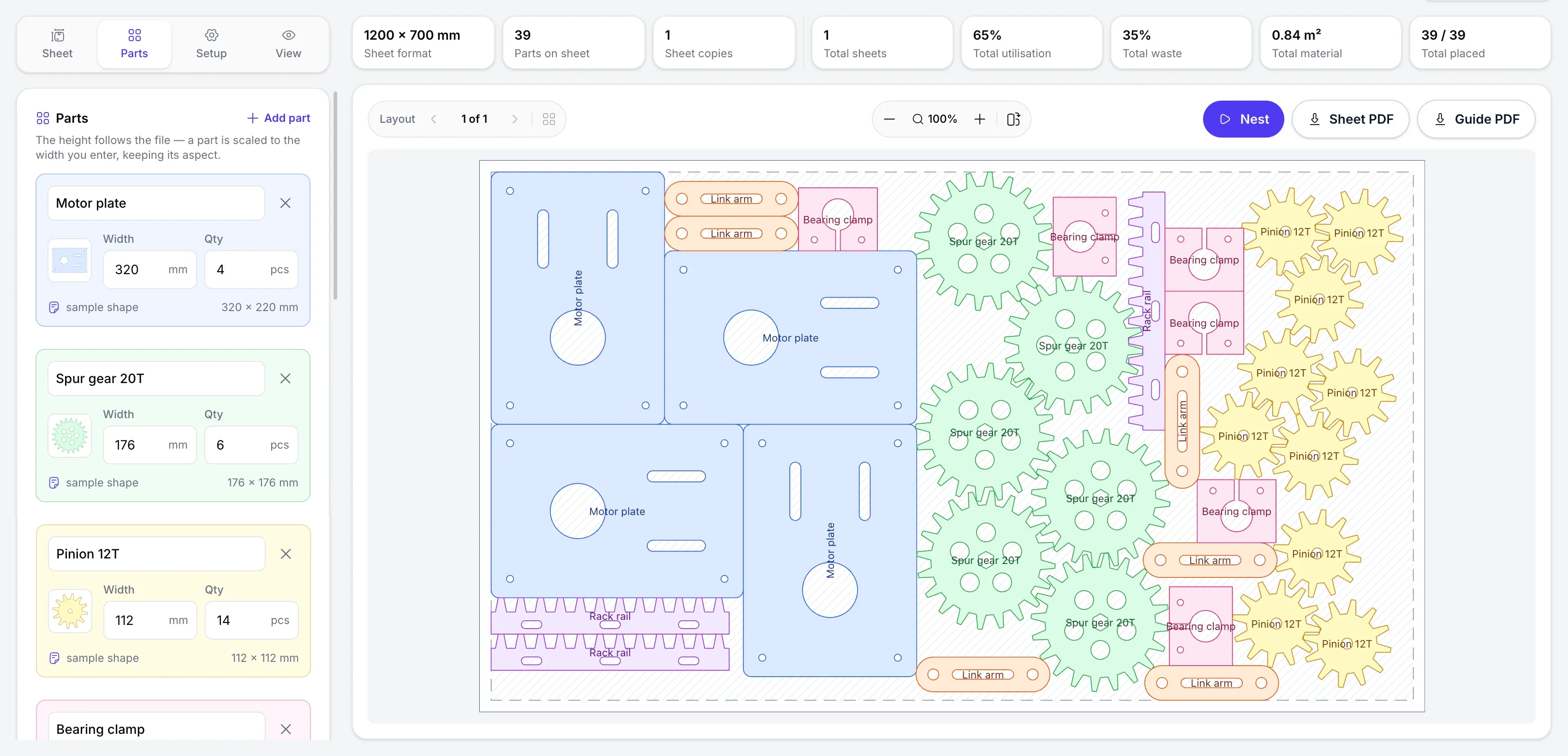
- Real outlines, not bounding boxes.
- L-shaped parts can tuck into one another, and curved ones can use the room between their neighbours. No material is lost to empty corners.
- DXF and SVG.
- Load the outline you already have — the tool uses its shape, curves, cut-outs and inner holes included.
- Nothing is uploaded.
- The file is read and nested right in your browser. The drawings stay on your computer, and there is no sign-up.
- Free rotation.
- Parts can turn for a tighter nest, or be locked where the grain, the flute or the print direction has to be kept.
- Sheet after sheet.
- When there are more parts than one sheet holds, the tool carries on to the next until the whole run is placed.
- Figures and PDF.
- Parts placed, fill, waste and material used — per sheet and for the whole job. Download a single sheet or the full PDF guide.
Everything in the tool
What the tool can do
Set the sheet and the parts, check the nest and get the finished sheets or the full PDF guide.
Sheets and formats
Compare sheet sizes and material used before you buy.
- Ready formats — A and B series, SRA and RA, press sheets, panels and North American sizes
- Any size of your own, from 100 to 3000 mm
- Sheet margins, each side on its own
- Sheets fill one after another until every part is placed
- Millimetres or inches, converted as you switch
Outlines
Working with the real shape of every part.
- DXF and SVG — curves, cut-outs and inner holes survive the import
- The nest is built on the outline, not on its bounding rectangle
- Its own allowance for every part
- Rotation can be locked part by part
- Ready sample shapes, to try the tool without loading a file
The nest
The tool works out where the parts sit on the sheet.
- An iterative search over different rotations and placements
- Parts use the free space between their neighbours' outlines
- Every sheet shows its sizes, its parts and the areas of material
- Zoom, fit, a 90° turn, one sheet at a time or all of them at once
- Everything is worked out in the browser — the files stay on your device
Figures and export
All it takes to check the result and carry on with it.
- Parts, sheets, material used, fill and waste — per sheet and for the job
- A PDF of a single sheet — the drawing at its real size
- The full PDF guide — job summary, parts table and every sheet at its real size
- Ten languages, in the interface and in the finished PDF
How it works
From an outline to a finished nest in four steps
Load the outlines and set the sheet — the tool works out where the parts sit.
Set the sheet
Pick a format from the list or type your own size, then set the margins on each side.
Add the outlines
Load a DXF or SVG, give the quantity and set the allowance.
Run the nest
The tool places the outlines by their shape and rotation, filling sheet after sheet.
Download the result
Download a single sheet or the full PDF guide with the job summary and every nest at its real size.
Who it is for
Made for shaped parts cut from flat stock
For jobs where the parts are cut to an outline and the sheet has to go as far as it can.
Laser and plasma cutting
Nest parts on steel, acrylic, plywood and other materials, with the spacing you need between outlines.
Router cutting
Place furniture parts, panels, templates and other blanks on the sheet, by their shape and rotation.
Packaging and die-cutting
Nest shaped blanks, inserts and other parts on the sheet and work out the yield in advance.
Foam inserts and gaskets
Place insert cavities, seals and gaskets on the sheet, with a set gap between outlines.
Signs and 3D letters
Nest letters, logos and shaped panels, using the free space between the outlines.
Leather and textile
Place shaped parts on a hide or a length of cloth, taking in their shape and whether they may turn.
FAQ
Good to know
Answers to the questions that come up before the first nest.
Is it really free?
Yes. Every format, mode and export is free — no account, no trial period and no card.
What can I load?
DXF and SVG. The outline is used as drawn, curves, cut-outs and inner holes included.
Do my drawings get uploaded anywhere?
No. The file is read and nested entirely in the browser. It is not sent to a server, and no sign-up is needed.
How is this different from rectangular nesting?
Rectangular nesting works with the bounding boxes of the parts and suits straight cuts from edge to edge. Nestizer works with the outlines themselves: one part can use the free space beside another. That is the way to cut on a laser, a router or any other contour machine.
How close do the parts sit?
Every part can carry its own allowance. The gap you set is kept between neighbouring outlines, along straight runs and along curves alike.
Can rotation be locked for a part?
Yes, part by part. It helps where the direction of a part cannot change because of the material or the process.
What if the parts do not fit on one sheet?
The tool fills sheets one after another until the whole run is placed. The result shows how many sheets were used, the fill and the material spent.
How does the tool find the nest?
Nestizer tries different placements and rotations of the outlines and keeps the best ones it finds. It is an algorithmic search, not a promise of a mathematically optimal nest.
Stop paying for empty sheet
Work out the optimal layout, see how much material it takes and download a finished PDF of the result. Free, right in your browser, with no sign-up.